


Why use an AI video translator? Benefits and typical use cases
Key benefits
-
Faster turnaround: automated transcription and synced re-voicing.
-
Lower cost: less studio time and fewer freelancers.
-
Global reach: translate into many languages to expand audience.
-
Consistent voice: reuse cloned voices and style presets.
Typical use cases
-
YouTubers: localize videos to grow international subscribers.
-
Marketers: translate ads, promos, and landing videos for campaigns.
-
Educators: create multilingual course videos and captions for learners.
-
Social teams: repurpose clips for reels, shorts, and stories.
DupDub at a glance: Key features and pricing that matter
Core modules creators use
-
AI Dubbing: end-to-end video voice translation with subtitle alignment and re-voicing.
-
Voice Cloning: make a multilingual synthetic voice from a 30 second sample (47 languages supported).
-
Text-to-Speech (TTS): 700+ voices across 90+ languages and accents, many speaking styles.
-
Speech-to-Text (STT) and transcription: auto-transcribe audio in 40+ languages for captions.
-
AI Subtitles and alignment: generate, translate, and export SRT files ready for editors.
-
Avatars and talking photo: create lifelike on-screen characters speaking target languages.
-
Studio tools and API: browser recording, edit suite, SFX, and API access to automate scale.
Export formats and workflow-ready outputs
Pricing tiers at a glance
-
Free trial: three days, no card, comes with 10 starter credits to test features.
-
Personal ($11/mo billed annually): 1,800 credits yearly, basic TTS and cloning limits, 25h transcription total.
-
Professional ($30/mo billed annually): 6,000 credits, higher TTS and transcription allowances, more voice clones and avatars.
-
Ultimate ($110/mo billed annually): 30,000 credits, large TTS hours, more clones, and unlimited file size for heavy workloads.
-
Pay-as-you-go: credit packs from small to large for one-off projects.
How AI video translation and dubbing actually work (simple technical explainer)
Core pipeline and checks
-
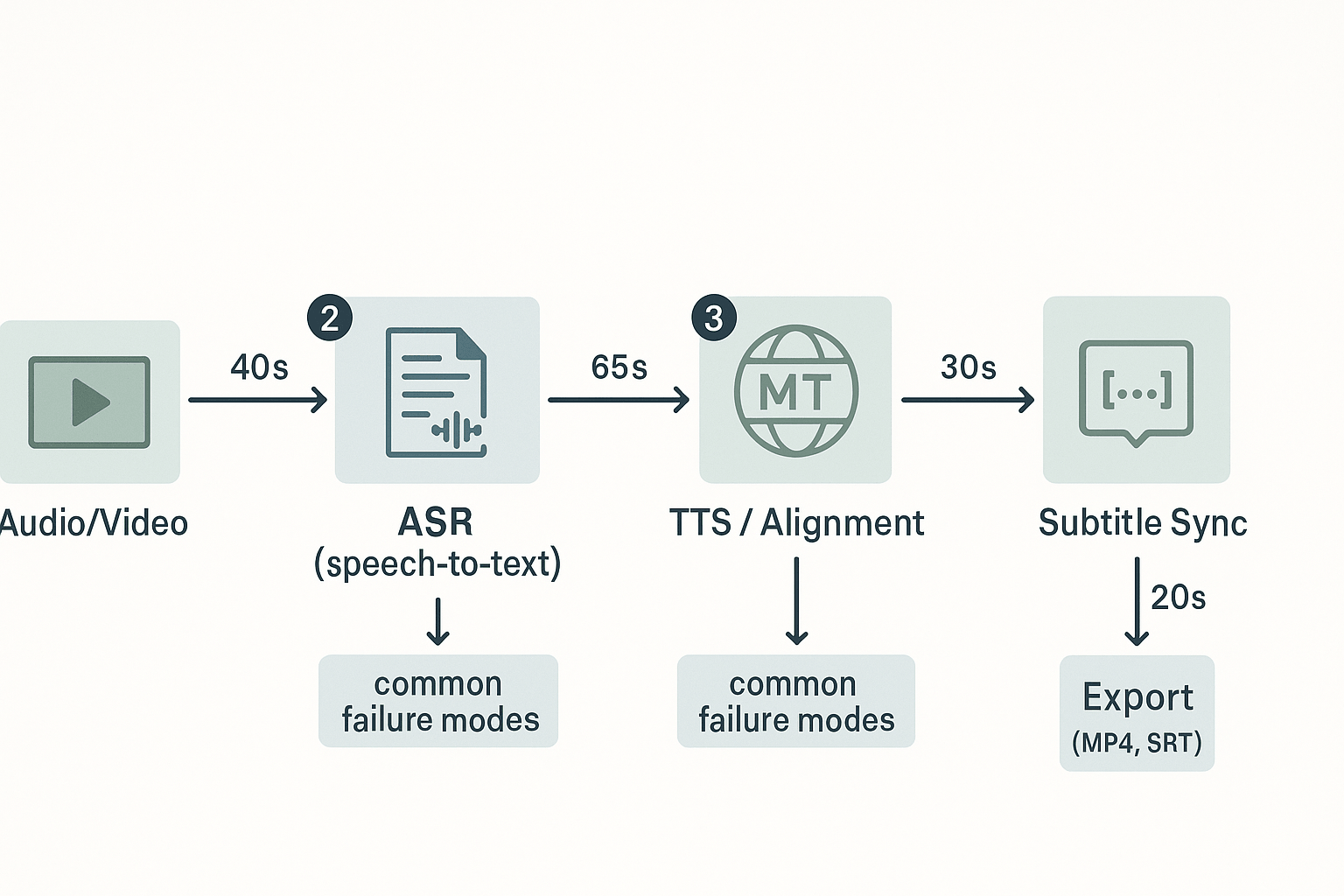
ASR (automatic speech recognition): Convert spoken audio to a transcript. Common failures: noisy audio, overlapping speakers, or accents that reduce accuracy. For forced alignment (precise timing), Tradition or Innovation: A Comparison of Modern ASR Methods for Forced Alignment (2024) reports that the Montreal Forced Aligner outperforms WhisperX and MMS in forced alignment tasks using manual datasets, indicating a need for improvement in modern ASR systems. Quick checks: spot-check transcripts, replay flagged segments, and run noise reduction if words are missing.
-
MT and alignment: Translate lines and map them to timestamps. Common failures: literal translations, sentence splits that break timing, and mismatched punctuation. Quality checks: compare key lines back to the source, fix long/short translations, and keep UI-friendly sentence lengths.
-
TTS or voice cloning: Generate the localized audio track. Failures: wrong emotion, robotic tone, or timing drift. Check phrasing, adjust pauses, and test a few different voices or a cloned voice sample for consistency.
-
Subtitle generation and sync: Export translated subtitles and align them to speech. Failures: misaligned cues and reading-speed issues. Check reading time per subtitle and shift cues where needed.
-
Export and final QC: Verify lipsync, subtitle readability, and audio levels. Do a full playthrough on target devices and get a native speaker to review if possible.
Step-by-step: Translate a video with DupDub (practical tutorial)
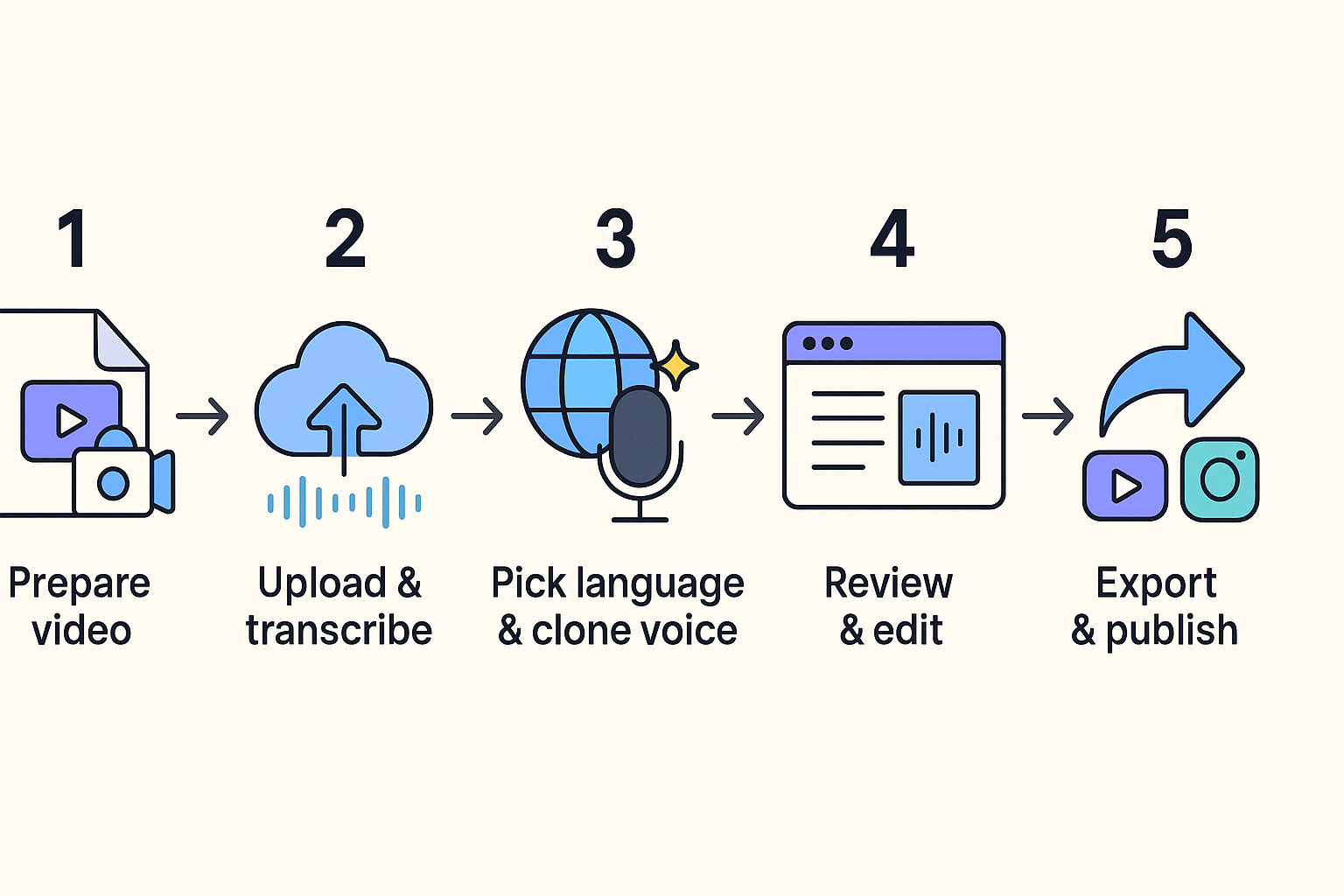
1) Prepare your source file
2) Upload and auto-transcribe (STT)
3) Pick target languages and voices
4) Review and edit in the browser studio
5) Export for YouTube or social
-
Check lip-sync and pause timing.
-
Listen for clipped words or odd pronunciations.
-
Verify proper nouns and brand terms.
Comparison: DupDub vs competitors (what to choose and why)
At a glance
|
Vendor
|
End-to-end video dubbing
|
Voice cloning
|
Avatars
|
TTS style breadth
|
File exports
|
Workflow automation
|
|
DupDub
|
Full video dubbing, subtitles, re-voicing
|
Strong, easy cloning
|
Talking avatars and photo avatars
|
700+ voices, 90+ languages
|
MP4, MP3, WAV, SRT
|
Browser studio, API, Canva/Chrome plugs
|
|
ElevenLabs
|
No full video pipeline, audio-first
|
Best-in-class cloning quality
|
Limited avatars
|
Very expressive voice styles
|
Audio only
|
SDKs and API
|
|
Murf
|
Focus on TTS & studio editing
|
Good cloning for voiceovers
|
No avatars
|
Wide styles for narration
|
Audio, some video
|
Integrations, team features
|
|
Play.ht
|
TTS focused, quick audio
|
Basic cloning options
|
No avatars
|
Large voice library
|
Audio, SRT export
|
API, CMS integrations
|
|
Synthesia
|
Video avatars and scenes
|
No personal voice cloning
|
High-quality AI avatars
|
Limited TTS voice styles
|
MP4, captions
|
End-to-end video workflows
|
Notes on language coverage and tradeoffs
Who should pick which tool
-
Quality-first: Choose ElevenLabs for the most natural cloned voices, then pair with a video tool. DupDub is close if you need end-to-end dubbing.
-
Cost-first: Play.ht or Murf give cheaper TTS for audio-first projects. Use DupDub pay-as-you-go for occasional video localizations.
-
Scale-first: DupDub or Synthesia for batch video workflows and API automation. DupDub adds voice cloning plus subtitles and exports for localization at scale.
Real user cases: 3 short case studies (YouTuber, Educator, Marketer)
YouTuber: scale views across languages
-
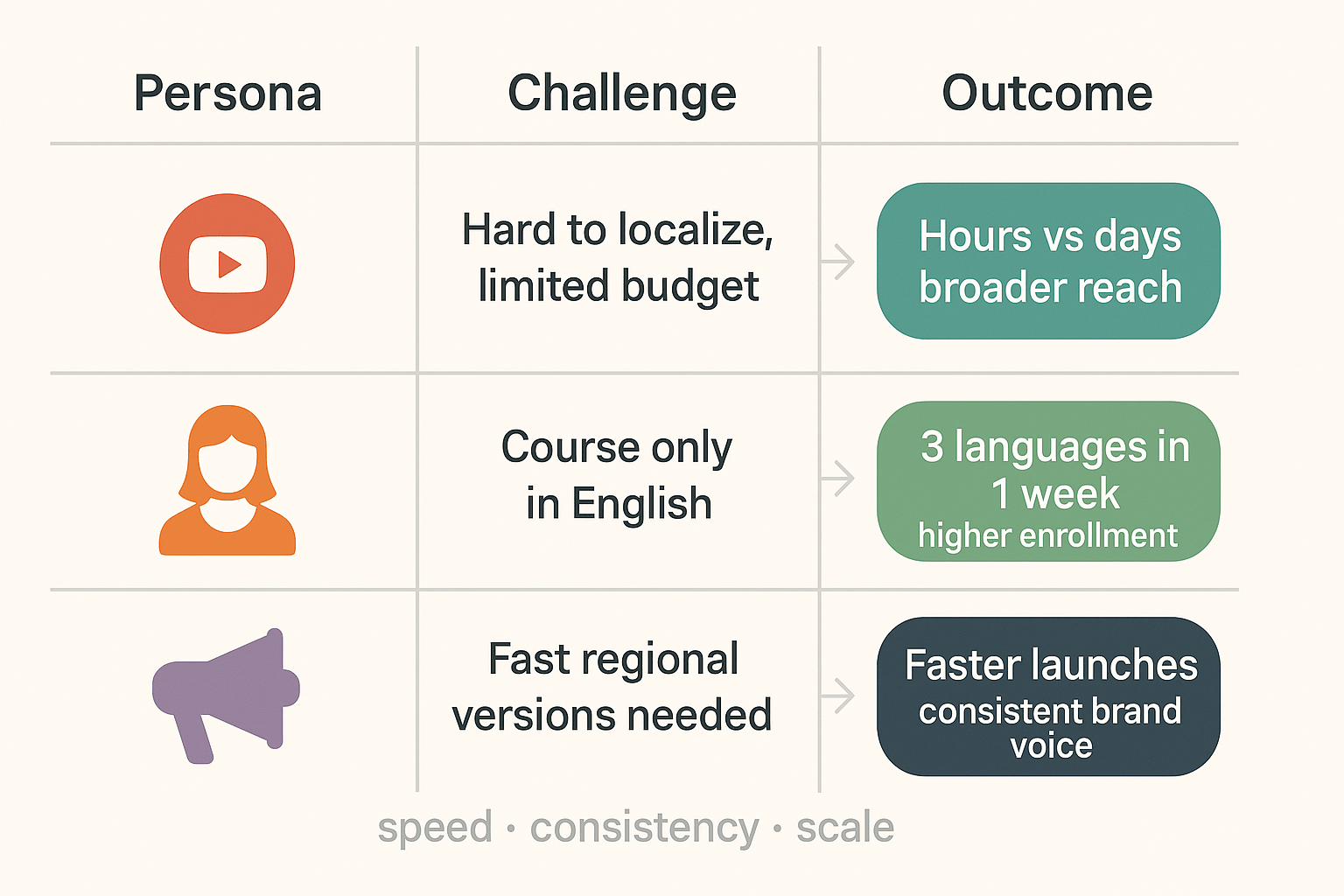
Challenge: Small creator, high effort to localize videos, limited budget.
-
Workflow: Auto-transcribe, translate, AI dubbing with a cloned voice, auto-sync subtitles in DupDub, quick review and export to MP4.
-
Outcomes: Publishing time fell from days to hours; consistent voice across languages; reach grew in non-English markets, with measurable watch time gains.
Educator: localize a paid course fast
-
Challenge: Low enrollment outside the home country because content was English-only.
-
Workflow: Batch transcribe modules, create TTS (text-to-speech) narration and subtitles, replace audio files and export SRT and MP4.
-
Outcomes: Course launched in three languages within a week; enrollment rose in target regions; support questions dropped thanks to clear subtitles.
Marketer: repurpose campaign videos for regions
-
Challenge: Campaign assets needed fast regional versions with an on-brand voice.
-
Workflow: Clone brand voice, translate scripts, generate dubbed ads and caption files, then A/B test region-specific creatives.
-
Outcomes: Campaign launches sped up, messaging stayed consistent across markets, and localized ads saw higher engagement.
Privacy, security, and compliance — what to check before uploading content
Verify encryption and data handling
Confirm consent and voice-clone opt-in
Enterprise checks and quick audit steps
-
Review processor agreements and data residency options.
-
Verify IP ownership and usage rights for cloned voices.
-
Confirm breach notification SLAs, access controls, and deletion workflows.
FAQ & Troubleshooting — common issues and how to fix them
-
Why did my upload fail and what file formats are supported for ai video translator?
If an upload fails, check format, size, and codec first. Supported files include MP4 for video, MP3 or WAV for audio, and SRT for subtitles. Confirm H.264 video codec and a standard MP4 container Keep file sizes under your plan limit or use pay-as-you-go Try a different browser or clear cache
-
How do I fix translation timing mismatches in subtitles and dubbing?
Use the auto-align tool again, then nudge segments in the editor. If speech pace changed, re-run alignment with the updated transcript.
-
Tips to improve cloned voice quality and naturalness
Provide a clean 30 second sample with no background noise. Record multiple takes, pick the clearest, and use Ultra voices or style controls when available.
-
How does billing work and how are pay-as-you-go credits used?
Credits pay for transcription, TTS, and dubbing. Your dashboard shows real-time use and remaining credits. Top up before large exports to avoid interruptions.
-
When should I contact support or escalate an issue to enterprise?
Contact support for persistent upload errors, cloning accuracy problems, or billing disputes. For security, compliance, or SLA needs, ask for enterprise escalation and include file ID and timestamps.
-
Quick fixes if audio sounds out of sync after export
Check export frame rate and player settings. Re-export with matching FPS and MP4/H.264 settings, or try a different media player.

 Discord
 YouTube
 Tiktok
 Twitter
 Facebook
 Instagram