


TL;DR, Fast answers: how to have a PDF read aloud (what to expect)
Want a quick answer on how to have a PDF read aloud? Use your device's built-in reader or a web TTS service. They play document text aloud in seconds.
Quick picks by platform:
-
Windows: use the system screen reader or a desktop PDF app with speech.
-
macOS: use the built-in speech features in system accessibility settings.
-
iOS and Android: use native voiceover or a mobile TTS app.
-
Browser or cloud: upload PDFs to a web TTS for more natural, multilingual voices.
When to pick cloud vs local: choose cloud TTS for lifelike, multi-language voices and long files. Choose local readers when you need instant access, full offline use, or simple narration.
Why use text‑to‑speech for PDFs (benefits & accessibility)
If you need to know how to have a PDF read aloud, use text-to-speech to turn PDFs into spoken audio. You absorb content faster and can work hands-free.
The Web Accessibility Initiative explains that Text to Speech | Web Accessibility Initiative (WAI) | W3C Text-to-speech technology enables content to be read aloud for people who cannot read the written language and for those who prefer to listen, for example, while multi-tasking.
Key benefits
-
Faster content intake: listen at 1.25x or 1.5x to process documents quicker.
-
Hands-free multitasking: review PDFs while commuting or doing chores.
-
Better access for vision loss and dyslexia: audio complements or replaces text.
-
Learning support and inclusion: helps auditory learners and neurodiverse users.
-
Compliance and auditing: readable PDFs help meet accessibility checks.
Accessibility coordinators and auditors care because TTS reduces barriers and supports WCAG-aligned goals.
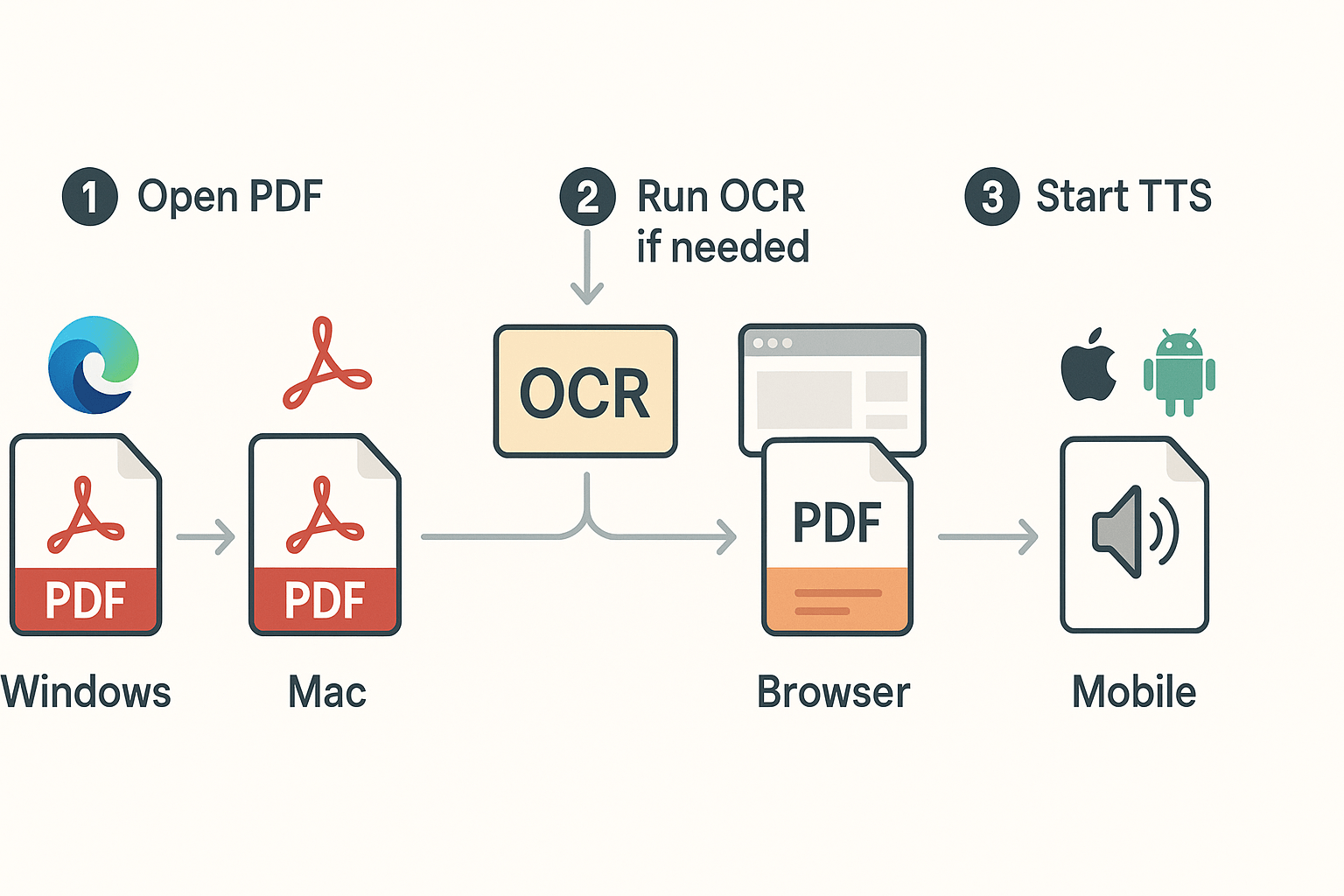
Quick steps: How to have a PDF read aloud (by device)
Want a fast way to hear a PDF? Below are device-specific, action-first steps that show how to have pdf read aloud and get listening in minutes.
Windows: use Edge Reader or Acrobat
-
Open the PDF in Microsoft Edge, choose Read aloud from the toolbar, pick a voice, and press play.
-
Or open Acrobat Reader, go to View > Read Out Loud > Activate, then Read to End of Document.
Mac: Preview and VoiceOver
-
Open PDF in Preview, select text, then use Speech > Start Speaking from the Edit menu.
-
For screenwide reading, enable VoiceOver in System Settings and use VO keys to start narration.
Chrome/Edge browsers: built-in or extensions
-
Right-click text and choose Speech or use browser Read Aloud extension for full-document playback.
-
Extensions let you change voice, speed, and highlight synced text.
iOS and Android: Speak Screen, Select to Speak
-
iOS: enable Speak Screen in Accessibility, swipe down with two fingers to start.
-
Android: enable Select to Speak in Accessibility and tap the PDF area.
If your PDF is scanned (image only), run OCR (Optical Character Recognition) first: use Acrobat’s Enhance Scan or a free OCR tool, then replay the TTS. For deeper device tutorials, see the Neural TTS how-tos at /neural-tts.
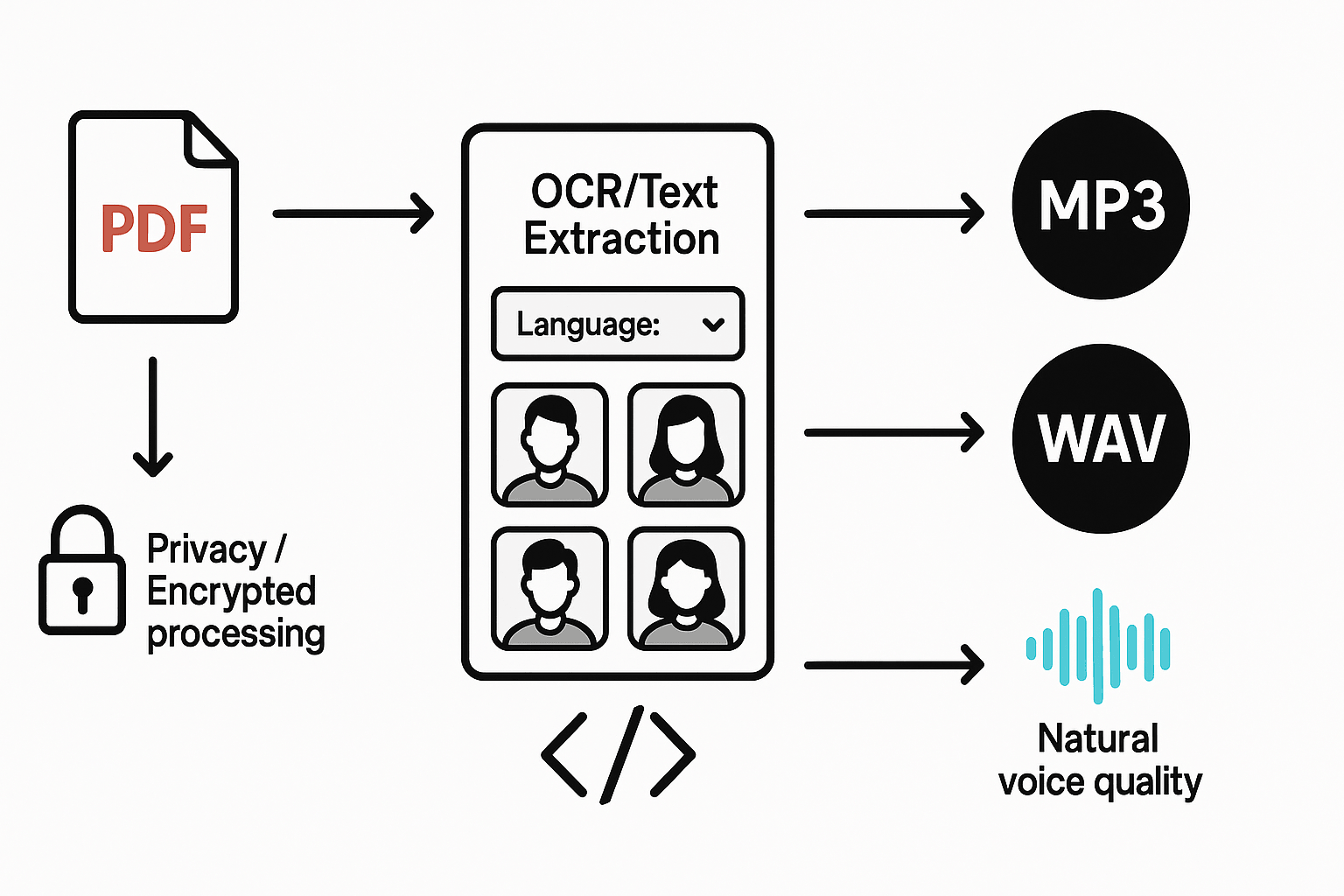
How DupDub reads PDFs aloud — workflow and advantages
How to have pdf read aloud is simple with DupDub. Upload a PDF or paste its text and DupDub extracts the words or runs OCR for scanned pages. Then pick a language and a natural voice, tweak pacing, and export audio or embed a player.
DupDub workflow
-
Upload the PDF or paste text into the studio.
-
Run OCR for scanned or image-based pages.
-
Choose language, voice, and speaking style.
-
Preview, adjust speed and emphasis, then render.
-
Export MP3 or WAV, or embed the audio for web use.
Why choose DupDub
-
700+ voices and 90+ languages, so multilingual projects scale.
-
Neural TTS styles give natural intonation and clearer comprehension.
-
Secure, encrypted processing and voice cloning locked to the original speaker.
-
Better for high-quality narration, batch workflows, and creator pipelines; use local readers when you must stay offline and avoid uploads.
For more on voice quality and controls see the Neural TTS cluster.
Side‑by‑side comparison: Acrobat, DupDub, Foxit/Nitro, Speechify
If you want to know how to have pdf read aloud, this quick vendor run‑down shows strengths and trade offs across voice quality, language support, OCR, pricing, batch work, and creator features. Read it to pick a tool for accessibility programs or for scalable content creation.
Voice quality and language coverage
-
Acrobat and Foxit/Nitro use local synthetic voices that are reliable for short reads. They work offline.
-
DupDub focuses on natural neural voices, 90+ languages, and voice cloning for brand consistency. It’s best for lifelike narration and multilingual content.
-
Speechify emphasizes fast, mobile-first listening with easy controls.
OCR, batch processing, and creator features
|
Attribute
|
Acrobat
|
DupDub
|
Foxit / Nitro
|
Speechify
|
|
OCR accuracy (optical character recognition)
|
Good
|
Good, cloud-enhanced
|
Good
|
Limited
|
|
Batch processing
|
Limited
|
Strong, API and bulk features
|
Moderate
|
Minimal
|
|
Creator tools
|
Reader-focused
|
Voice cloning, avatars, API
|
Editor tools
|
Reader and mobile tools
|
|
Offline use
|
Yes, desktop
|
Cloud-first
|
Yes, desktop
|
Mostly online
|
Desktop readers win when you need no upload and offline access. DupDub stands out for natural neural voices, broad multilingual support, voice cloning, and creator APIs, which helps content teams scale. Accessibility officers may prefer desktop readers for privacy and offline compliance, while content creators will value DupDub for localization and brand voice.
For trials or demos, check your product pricing and feature pages to compare plans and limits.
Accessibility settings & customizing the listening experience
Set the player so speech matches the listener. When you set up how to have a PDF read aloud, tweak speed, pitch, and pronunciation to improve clarity. Use pronunciation rules and SSML (Speech Synthesis Markup Language) to correct names and acronyms.
Tweak speed, pitch, and pronunciation
Start with a moderate speed, then slow for clearer words. Lower or raise pitch to reduce sibilant sounds. Use SSML tags or a pronunciation dictionary to spell out initials and odd names. See Guidelines for the Use of Text to Speech (TTS) for the claim: The American Council of the Blind supports the use of human-voiced audio description as the preferred mode of its provision for consumers.
Best settings by need
-
Dyslexia: slow pace, a clear neutral voice, longer pauses, and phonetic corrections.
-
ADHD: break audio into short segments, add bookmarks, use chapter markers, and keep pace moderate.
-
Low vision: large player controls, high contrast UI, and a voice with strong enunciation.
Screen readers, languages, and voices
Ensure the PDF exposes selectable text so screen readers can access it. Follow WCAG guidance and test with popular readers. Pick a natural voice in the correct language and try multiple accents for clarity. For creators, review DupDub’s language and voice docs for SSML examples and voice options.
Troubleshooting common issues when PDFs won’t read aloud
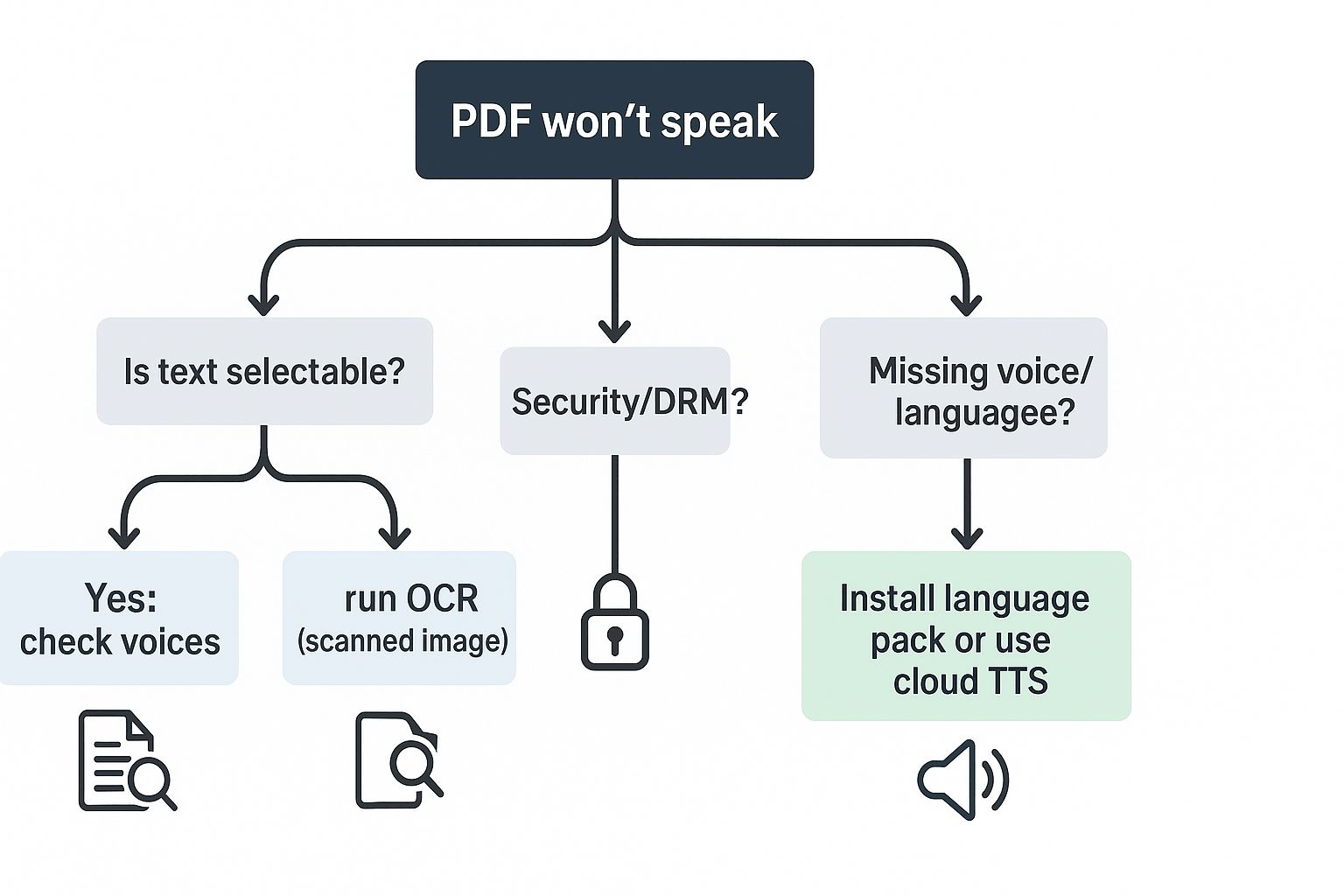
If your PDF won’t speak, run a few quick checks to find the cause and fix it fast. This short guide covers the usual failures: unrecognized text, protected files, missing voices, and basic audio problems, plus a compact checklist before you call support.
Quick diagnostics
-
Is text selectable? If not, run OCR (optical character recognition) in Acrobat or a PDF app. Scanned images need OCR to become readable.
-
Is the file secured or DRM protected? Remove owner passwords or request an unlocked copy from the sender. DRM often blocks TTS entirely.
-
Are fonts or embeds missing? Export to plain text or PDF/A, then retry.
-
Missing voice or language pack? Install the language pack, or use a cloud TTS with broad language support.
Fix audio quality
-
Lower speed or switch voices if audio sounds unnatural.
-
Export audio at a higher bitrate if available.
-
Use noise reduction if background hiss appears.
Quick checklist before support
-
Run OCR, try another reader, remove security, test a simple PDF, and confirm network access for cloud TTS.
Note on privacy and workflows: use on-device readers for highly sensitive docs. For superior voice quality, many languages, and fast installs, cloud TTS services like DupDub provide encrypted processing and broad voice options, but send files to the cloud. Balance privacy needs with voice quality and language coverage when you choose a reader.
Real-world use cases & short user scenarios (incl. quotes)
These short scenarios show practical ways to have PDF read aloud in real workflows. Pick the right device and voice for focus, study, or accessibility. Each example includes a brief quote and a settings tip.
Student: study on the commute
Mia listens to her annotated lecture notes on the subway using a mobile reader. "I finish readings on the train and retain more," she says. Tip: choose a clear, steady voice at 1.05–1.2x speed and enable offline mode for flaky data.
Creator: turn PDFs into podcast scripts with DupDub
Alex converts PDF guides into tight podcast scripts, then batches narration in the cloud. "DupDub saved me hours, the voices sound human." Tip: export clean text, pick an Ultra voice for natural tone, and trim pauses in the editor.
Accessibility officer: prep materials for low-vision staff
Jamila adds audio tracks to onboarding PDFs for low-vision team members. "Offering audio cut complaints by half," she reports. Tip: use slower pacing, high contrast text, and provide multiple voice choices.
Commuter: hands-free reading on public transit
Rob listens to long reports during his commute with smart speed controls and bookmarks. "I get two hours of reading done each ride." Tip: split long PDFs into sections, use bookmarks, and set voice speed to 1.15x.
See internal case studies or the Neural TTS cluster for sample workflows and voice demos: Case studies and Neural TTS cluster.
FAQ — quick answers to common 'read PDF aloud' questions
-
Is it legal to convert a PDF to audio (convert a PDF to audio)?
Yes for personal use in most places, but you must respect copyright and license terms. Don’t redistribute or sell narrated copies of copyrighted works without permission.
-
How to have PDF read aloud from scanned PDFs?
Scanned PDFs need OCR (optical character recognition) to extract text.
Steps:
Run OCR in Acrobat or a standalone tool.
Export or copy the recognized text.
Paste text into your TTS app or upload the searchable PDF. -
Where to find the most natural voices for PDF narration (natural voices for PDF narration)?
Look for neural TTS platforms with large voice libraries and demos. Cloud services and voice cloning give the most lifelike results for long reads and brand voice.
-
How many languages and voices does DupDub support for PDF TTS (languages and voices DupDub supports)?
DupDub offers TTS in 90+ languages and accents, and 700+ voices. Voice cloning covers 47 languages, and exports include MP3 and WAV.

 Discord
 YouTube
 Tiktok
 Twitter
 Facebook
 Instagram