This guide gives clear, WCAG-aligned steps to make audio that works with screen readers and accessible workflows. You’ll get practical best practices, transcript examples, and workflow templates you can use today.
Who benefits:
-
Content creators and e-learning teams producing narrated lessons.
-
Accessibility leads and product managers building inclusive media.
-
Developers and QA testing audio, captions, and exports.
Three quick takeaways:
-
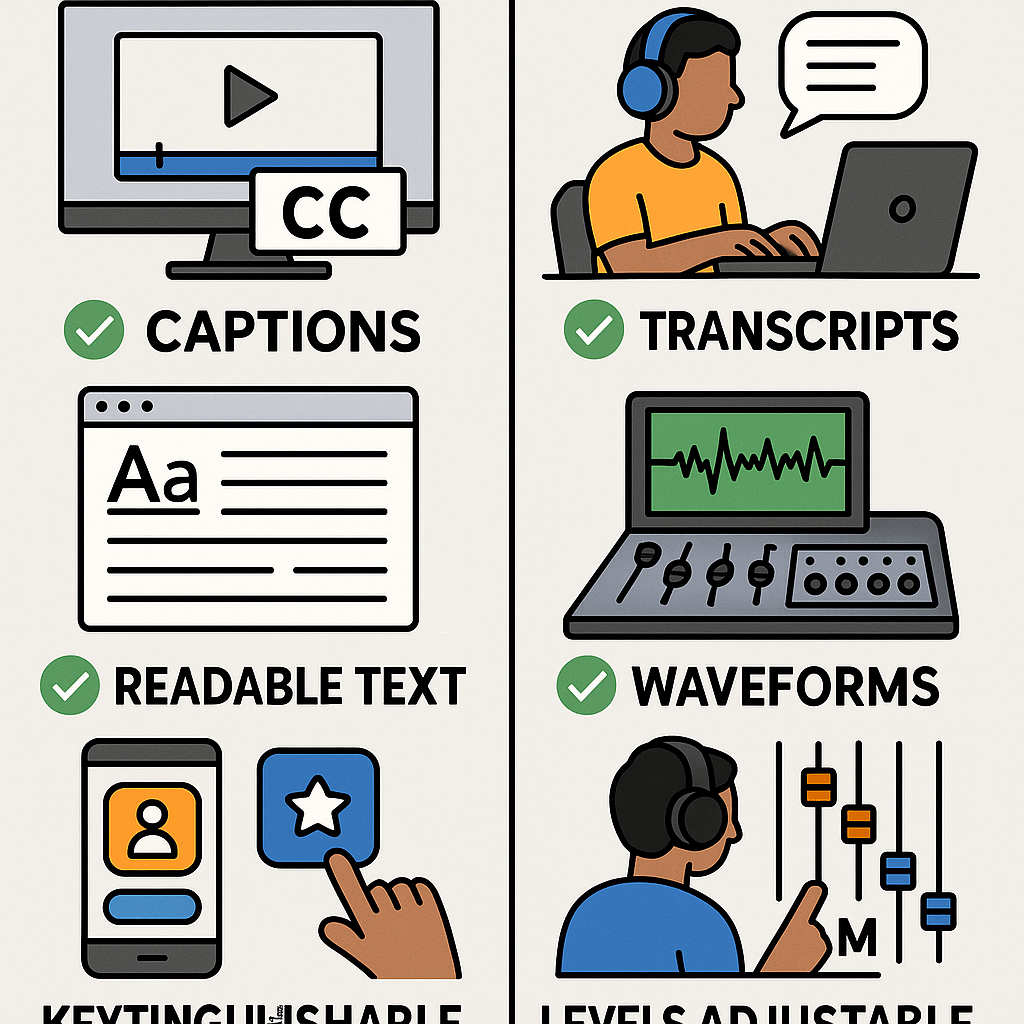
Prepare accurate transcripts and timed captions before publishing.
-
Use clean, consistent audio and metadata so assistive tools can parse content.
-
Export accessible subtitle formats and plain-text transcripts for integrations.
Read on for step-by-step workflows, feature mappings, and copy-paste transcript examples you can test in your pipeline.
Clear, predictable audio makes a big difference for people who rely on a screen reader. Poor audio quality, missing context, or unpredictable speech breaks can hide meaning and slow navigation. Worldwide,
Disability (2023) reports an estimated 1.3 billion people experience significant disability, which highlights why accessible audio matters for reach and equity.
Why clear audio helps
Good audio lowers cognitive load and improves comprehension. When narration is steady and structured, listeners can build a mental map of the content faster. That matters for tasks like learning, skimming a lecture, or finding a specific section in a long file.
Common problems people report
-
Background noise that masks the narrator.
-
Fast, run-on speech with no pauses.
-
Missing verbal cues for visual content like charts or slides.
-
No synced transcript or poor timestamps.
-
Overlapping voices or sudden volume jumps.
Fixing these problems improves discovery, navigation, and learning. Clear audio plus accurate transcripts helps blind and low-vision users skim, search, and jump to relevant points. That saves time, reduces frustration, and makes your content usable for a wider audience.
Screen readers handle audio and media differently than sighted users. This section explains what VoiceOver, TalkBack, and desktop readers announce, what they skip, and how braille output can differ from speech. You’ll learn how web players, transcripts, and TTS-generated audio are exposed to assistive tech, and the key mobile versus desktop behavior creators should plan for.
How mobile readers surface media
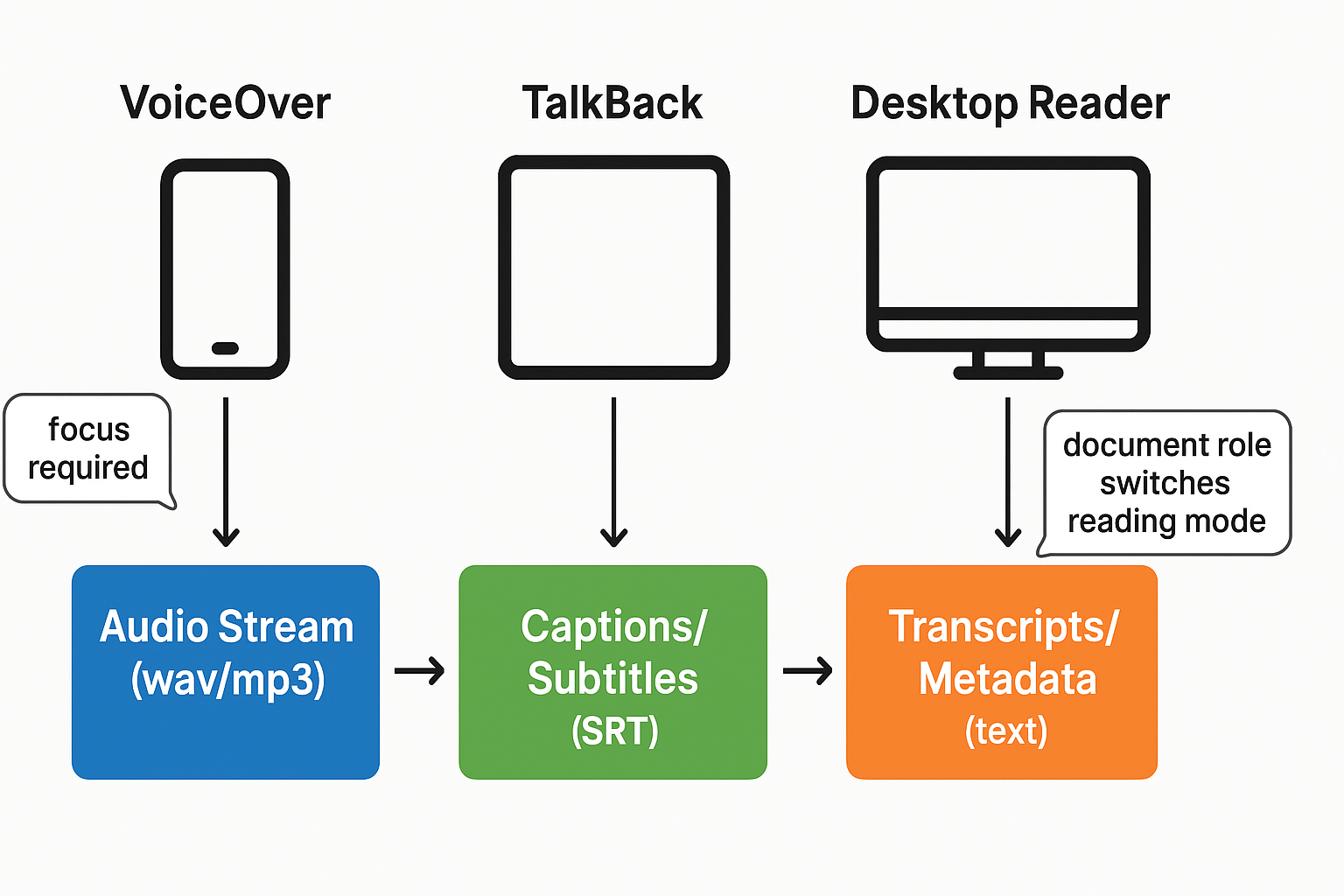
On iOS, VoiceOver exposes media controls and captions through the native player and accessible labels. Android TalkBack reads player controls and may auto-read captions only when focus moves to them. Mobile browsers sometimes hide custom controls unless they use proper ARIA roles and keyboard focus.
How web players, transcripts, and TTS are exposed
Screen readers read semantic elements, form controls, and text alternatives. Note that the 'document' role in
WAI-ARIA 1.3 allows assistive technologies to switch to a reading mode when user agent focus moves to an element with this role, which affects how embedded transcripts and timed text are announced. In practice:
-
What gets read: semantic captions, visible transcripts, and labeled controls.
-
What’s ignored: decorative audio, unlabeled custom controls, and offscreen media without focus.
Braille versus speech output
Braille shows the textual content the reader exposes, like captions and transcripts. Speech can include extra status messages such as play state or errors. Test with both outputs, because braille users often rely on complete transcripts and metadata.
Best practices for creating screen-reader friendly audio
Creating audio that works well with a screen reader starts with clear speech, useful metadata, and a full transcript. These practical steps can assist creators, e-learning teams, and product owners in making audio more usable and navigable.
1. Speak clearly at a steady pace
Use a calm and consistent tone. Speak distinctly and avoid rushing. Leave natural pauses between sections to help listeners absorb content. Record in a quiet space and consider using a pop filter to reduce plosives.
2. Always include a transcript
Provide a complete, verbatim transcript for every audio segment. Break the transcript into logical sections with headings and timestamps to improve navigation.
Example:
Title: Intro to Project Management Duration: 12:34 minutes Chapters:
-
00:00 — Introduction
-
00:35 — Defining Scope
-
04:10 — Risk Management
Transcript Snippet:
-
00:00 — Welcome to Lesson 2.
-
00:35 — Today we'll explore how to define project scope.
-
04:10 — Next, let's examine the risk register...
3. Add accurate metadata
Ensure the audio includes metadata fields such as title, description, duration, speaker names, and topic keywords. Enable this metadata to be read programmatically by screen readers or indexing tools.
4. Use captions and chapter markers
Export synchronized captions in formats like .srt. Sync captions with the spoken audio content. Add chapter markers where possible to allow keyboard navigation between key moments.
5. Use audio cues responsibly
Avoid sound effects or music that compete with the narration. If music is present, lower its volume under dialogue. Describe meaningful sounds (like alarms or beeps) in text or transcripts with notes like: [fire alarm sounds].
6. Label speakers
In transcripts, label who is speaking, especially in multi-speaker audio. For example:
Speaker 1: Welcome to the training. Speaker 2: Thanks for having me.
Avoid pronouns like "this" or "that" without clear references—they're confusing without visual context.
In summary, combining high-quality audio with organized text and structure ensures your content can be fully absorbed by users who rely on screen readers.
How DupDub maps to accessibility needs: feature-by-feature guide
This section maps DupDub features to common accessibility needs, so teams can build audio that works with screen reader workflows. Read short, actionable mappings for narration, captions, cloning, and export. Each item tells you what to use and why it helps people who rely on assistive tech.
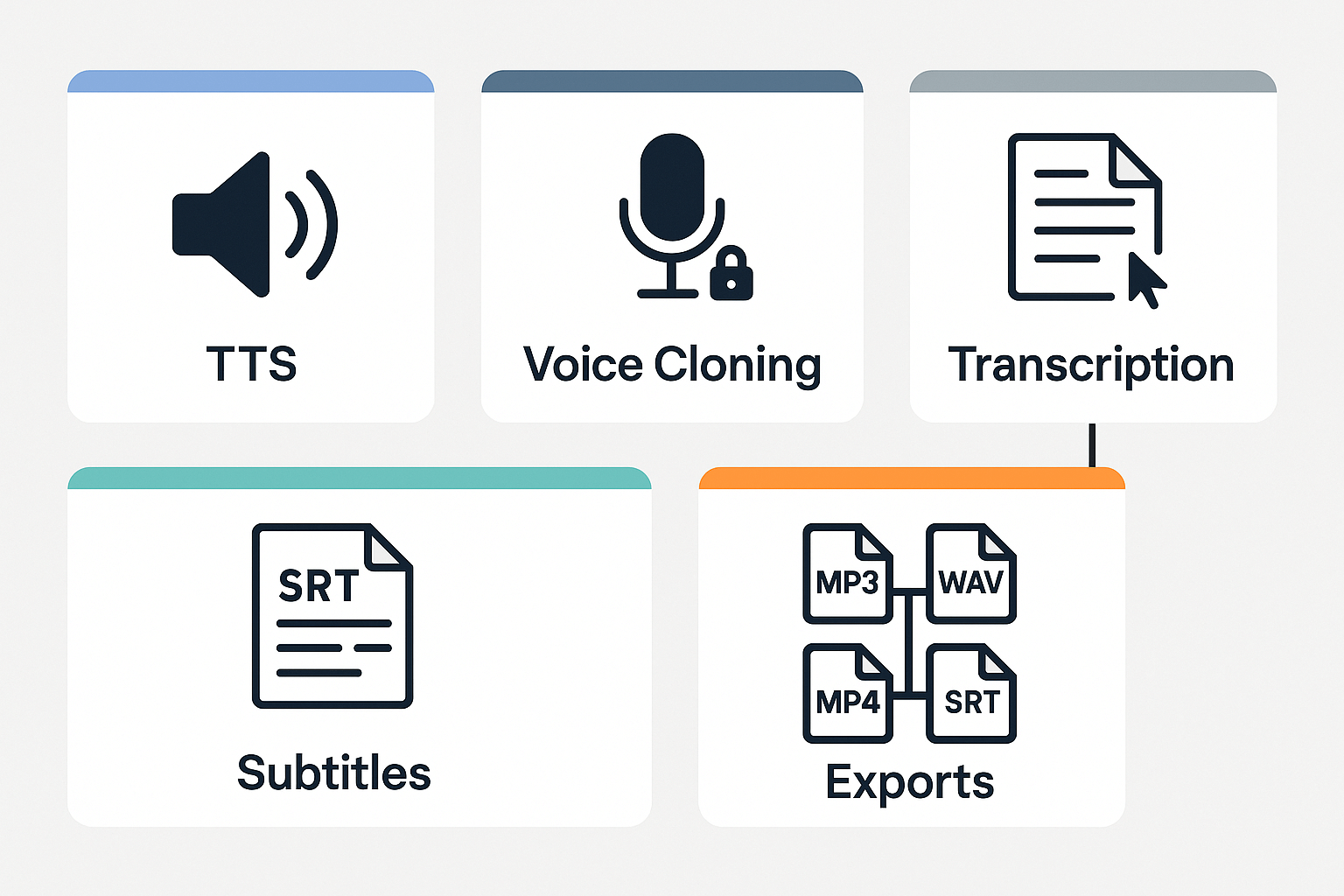
TTS for clear, consistent narration
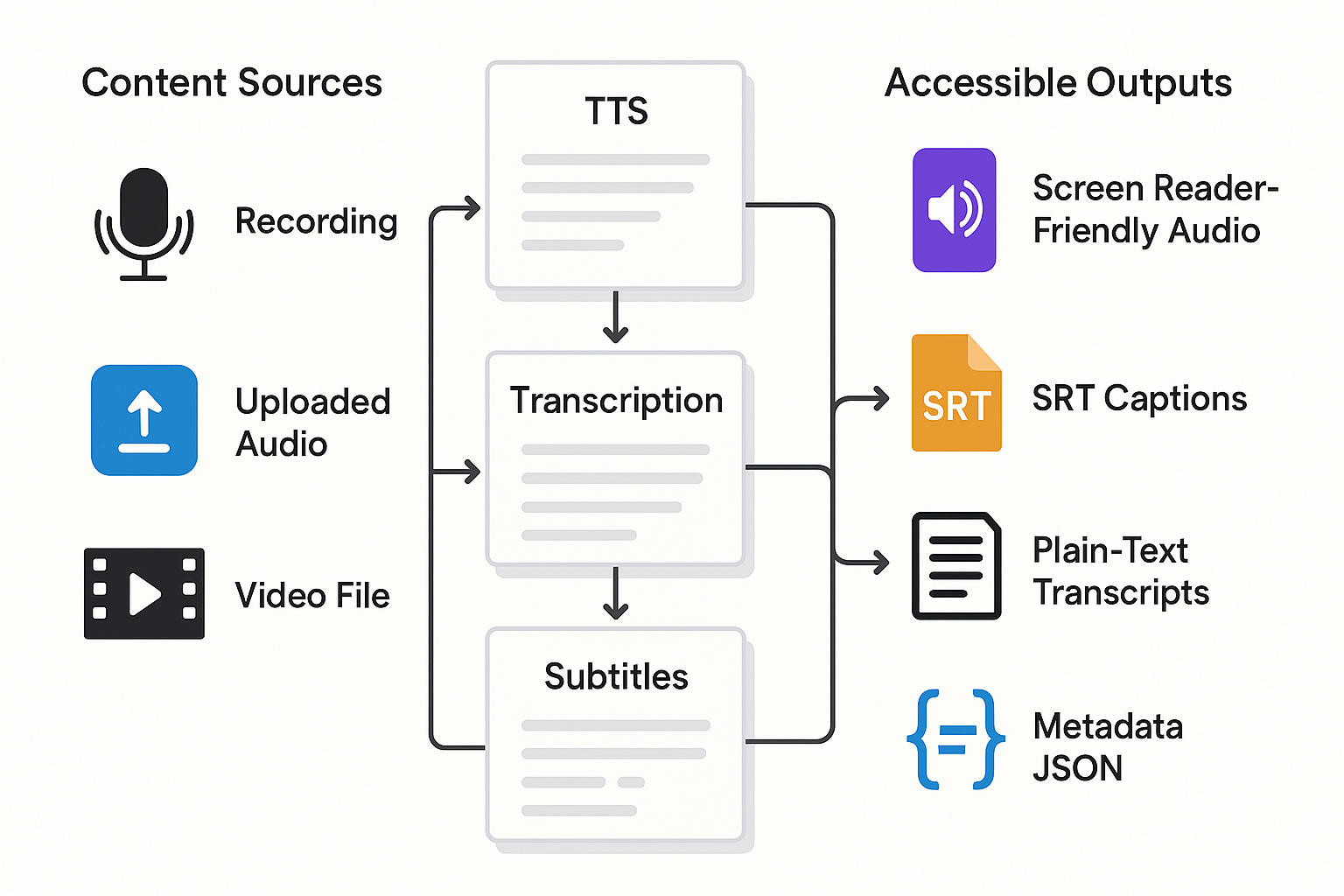
DupDub provides 700+ voices and many speaking styles to boost intelligibility. Choose neutral accents, slower pacing, and higher clarity styles for dense content. Using consistent TTS voices makes audio predictable and easier to follow.
Transcription and subtitles for searchable text
Automatic speech-to-text produces editable transcripts and SRT subtitle files. Exported transcripts make content searchable and let teams generate semantic metadata. SRT captions sync with audio, helping users who skim or use screen readers to navigate.
Voice cloning with built-in ethical controls
Clone a narrator from short samples to preserve brand voice across languages. DupDub locks clones to the original speaker and uses privacy safeguards. That balance keeps narration familiar while protecting consent.
Export formats that fit accessible workflows
Export MP3 or WAV for audio distribution, MP4 for video, and SRT for captions and transcripts. WAV suits editors and archival quality, while MP3 reduces bandwidth. These formats plug into LMSs, CMSs, and assistive pipelines.
Side-by-side checklist: Accessibility requirements → Practical DupDub workflow
Use this compact checklist to map common WCAG audio requirements to test methods and the DupDub features that solve them. It’s built for creators and accessibility teams who need quick, testable steps that fit into a production workflow for screen reader users.
Checklist
|
Requirement
|
How to test
|
DupDub feature to use
|
|
Captions and full transcript
|
Play media, open transcript, compare text vs audio
|
Speech-to-Text transcription; export SRT
|
|
Machine-readable language tag
|
Inspect metadata or HTML lang attribute
|
Export with language code; TTS language selection
|
|
Clear speaker IDs and labels
|
Listen and scan transcript for speaker labels
|
Edit transcript in DupDub studio; add speaker labels
|
|
High audio clarity and SNR (signal-to-noise)
|
Listen at low volume and on mobile earbuds
|
Record & Edit tools; AI Sound Effects; re-record with TTS/voice clone
|
|
Synchronized subtitles
|
Scrub timeline and check caption timing
|
Auto-align subtitles; manual fine-tune editor
|
|
Accessible file formats
|
Try MP3/WAV and SRT in target player
|
Export MP3/WAV and SRT, or API delivery
|
Sample workflow: short training video
-
Author script with speaker labels and language tag. 2. Upload raw file or transcript to DupDub. 3. Run Speech-to-Text, generate SRT, choose TTS or voice clone for narration. 4. Export audio + SRT, or embed via API. 5. QA with desktop VoiceOver and mobile TalkBack, fix timing or labels, re-export.
Delivery notes and quick test commands
For desktop, enable VoiceOver on macOS via Command+F5, then play and use the VoiceOver cursor to verify controls and transcript focus. For mobile, enable VoiceOver or TalkBack in Settings > Accessibility, play audio, and use the screen reader gestures (two-finger scroll on Android, swipe navigation on iOS) to confirm playback controls, captions, and transcript availability.
Case studies & real user stories (short)
Quick micro case: an e-learning team used synthetic TTS plus precise transcripts and chapter metadata to speed navigation and boost completion for visually impaired learners. They linked time-stamped transcripts to lesson chapters so learners using a screen reader could jump to topics. The result, in practice, was faster review and fewer drop-offs.
Micro case: what they did and why it worked
The team converted lecture audio to high-quality TTS and produced verbatim transcripts. They added chapter markers and searchable keywords in the metadata. Instructors reported shorter help requests and clearer progress tracking. Learners found sections faster, and course completion rose for the targeted cohort.
Short quote from an accessibility lead
"Adding clear transcripts and chaptered TTS changed navigation for our students. It made study sessions shorter and more effective," said an accessibility lead who ran the rollout.
Lessons learned and pitfalls to avoid
-
Lessons learned:
-
Treat transcripts as UX, not an afterthought, and sync them to audio precisely.
-
Use consistent voice profiles across a course for familiarity.
-
Common pitfalls:
-
Skipping time codes and chapter markers, which breaks navigation.
-
Relying on a single raw TTS pass without proofreading for tone or context.
Technical compatibility & implementation checklist (WCAG, braille, and mobile readers)
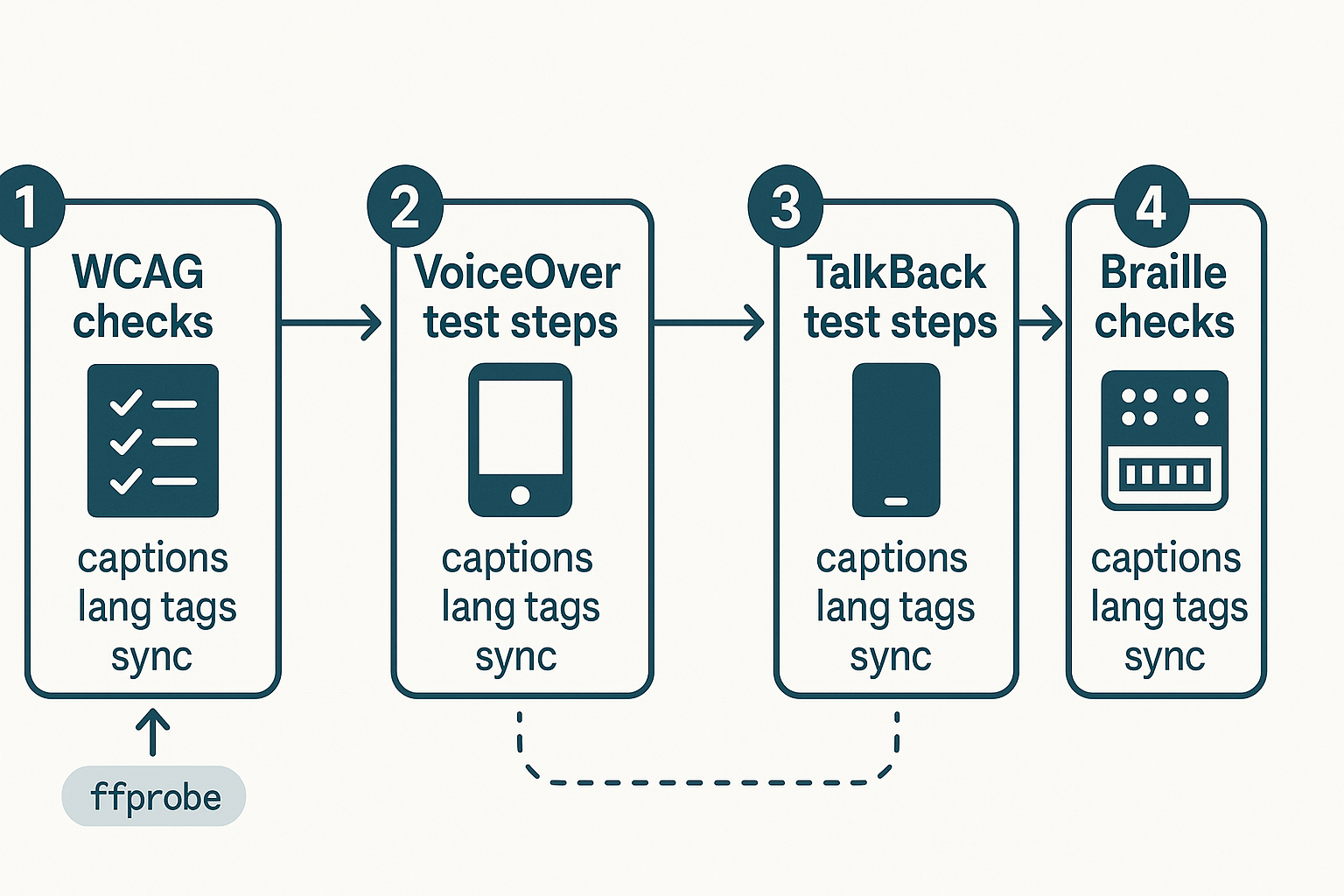
Start with the essentials: verify WCAG checkpoints that apply to audio and media, then run device-level tests on VoiceOver and TalkBack, and finish by validating common braille workflows. This checklist gives step by step QA commands and expected results so testers can confirm audio, captions, language tags, and metadata read correctly by assistive tech like a screen reader.
WCAG checkpoints to verify
Check captions and transcripts first. According to
Web Content Accessibility Guidelines (WCAG) 2.2, Success Criterion 1.2.2 Captions (Prerecorded) (Level A): Captions are provided for all prerecorded audio content in synchronized media, except when the media is a media alternative for text and is clearly labeled as such. Also confirm 1.2.1 (audio-only alternatives) and 3.1.1 (language of page) are satisfied.
Run this quick QA list:
-
Captions present (SRT or VTT) and time-aligned.
-
Transcripts include speaker labels and timestamps.
-
HTML lang attribute set, and audio elements include lang when speaker changes.
VoiceOver test steps (iOS/macOS)
-
Enable VoiceOver: macOS press Command+F5, iOS triple-click side button or Settings → Accessibility.
-
Navigate to audio player, use rotor or swipe to focus controls. Expected: VoiceOver announces player name, play/pause, and duration.
-
Activate play (double-tap). Expected: audio plays and captions appear; VoiceOver reads track language tag when focus moves to captions.
-
Verify transcript reading: place focus on transcript text and swipe. Expected: VoiceOver reads speaker names and timestamps.
TalkBack test steps (Android)
-
Enable TalkBack: Settings → Accessibility → TalkBack, or hold both volume keys on some devices.
-
Use explore by touch, find media controls. Expected: TalkBack announces button labels and state.
-
Start playback and open captions. Expected: captions sync with audio and TalkBack offers text selection for transcript.
Braille display checks
-
Connect braille display to device running the screen reader. Expected: braille shows the focused control label.
-
Step through transcript. Expected: contracted braille (UEB) shows speaker names in plain text and timestamps as numbers.
-
Verify focus sync: moving braille cursor should move screen-reader focus to corresponding transcript line.
Troubleshooting common issues
-
Out of sync captions: check SRT timing and file encoding. Command: ffprobe -v error -show_entries stream=sample_rate -of default=noprint_wrappers=1:nokey=1 file.wav to verify sample rate.
-
Language tag misreads: confirm HTML lang and aria-lang on elements, then re-run VoiceOver or TalkBack.
-
Misread metadata: ensure audio file metadata (title, artist) is set or strip it and rely on visible labels.
Use this checklist during final QA to catch issues before release.
FAQ — Common questions about screen-reader friendly audio and DupDub
-
Is synthetic voice okay for screen reader users?
Yes. A clear, well-paced synthetic voice works fine with a screen reader when you include a good transcript and proper metadata. Make sure the TTS has natural prosody, consistent volume, and is labeled in the file metadata so assistive tech and users know what they’re hearing.
-
How do I handle multiple languages and accents in screen reader workflows?
Tag each audio file with the correct language code and include translated transcripts and time-aligned captions. Use separate tracks or files per language, and offer a clear language switch in the UI so screen readers announce the change.
-
What are DupDub pricing, trial details, and limits for accessible audio?
DupDub offers a 3-day free trial with starter credits, no credit card needed. Paid tiers scale from Personal to Ultimate, with more TTS hours, transcription minutes, and voice clones per plan. Pick a plan based on hours of narration and number of cloned voices you need.
-
Where can I get help, demos, or community support for screen reader audio projects?
Check DupDub’s help center, request a demo, or join the community forums for workflow tips and accessibility guides. Sign up for the newsletter for product updates, tutorials, and accessibility best practices.
-
Is voice cloning safe and compliant for screen reader use?
Use voice cloning only with explicit consent from the speaker and clear attribution in metadata. DupDub notes that clones are locked to the original speaker and processing is encrypted, but you should still document permissions and accessibility notes with each file.




 Discord
 YouTube
 Tiktok
 Twitter
 Facebook
 Instagram