For wcag compliance, focus on three deliverables for every video and audio file: accurate captions, usable transcripts, and either audio description or a text to speech alternative. Start with the highest-risk assets and fix the basics first, so you lower legal and UX risk quickly.
30 to 60 day checklist:
-
Audit your top 10 to 20 videos for missing or poor captions and transcripts.
-
Auto-generate captions, then have an editor correct timing and speaker labels.
-
Publish searchable, downloadable transcripts plus SRT files for players.
-
Add audio descriptions or TTS narration for visual-only content.
-
Log fixes, assign owners, and store evidence for compliance reviews.
Next sensible steps: run a small pilot of 8 to 12 assets, track reach and error rates, then brief legal and engineering for enterprise rollout. Keep the scope tight and measure impact before scaling.
What WCAG 2.2 and Section 508 require for multimedia
WCAG 2.2 sets the technical rules you must follow to make audio and video usable by people with disabilities. This section explains the key multimedia obligations under the standards and how U.S. Section 508 maps to those requirements for federal and public-facing content. The guide uses plain terms so accessibility officers can track what matters for captions, audio description, transcripts, and metadata.
Conformance levels and what they mean
WCAG defines three conformance levels: A, AA, and AAA. Level A fixes the most basic barriers. Level AA covers major user needs and is the common legal target. Level AAA is stricter and rarely required for whole sites.
Section 508 and many policies require at least WCAG Level AA for web and multimedia assets. According to
Video and Multimedia Products (1194.24), Section 508 requires that all training and informational video and multimedia productions supporting an agency’s mission, regardless of format, that contain speech or other audio information necessary for comprehension, must be open or closed captioned.
Multimedia specific requirements, in plain terms
-
Captions: Synchronized text for all speech and meaningful sound. Include speaker IDs when helpful. Live captions need real-time captions or a clear alternative.
-
Audio description: A short track or optional audio layer that narrates key visual content for blind users.
-
Transcripts: Time-aligned or line-level text for recorded media, including non-speech sounds and music cues. Transcripts support search and alternative consumption.
-
Media controls: Play, pause, volume, and a visible focus state for keyboard users.
-
Language and metadata: Correct language tags, descriptive titles, and caption/subtitle metadata so assistive tech can detect them.
-
Caption quality: Accurate punctuation, readable line length, and proper sync. Automated captions must be reviewed and corrected when used.
How to track compliance
Create a simple inventory of media files, their accessibility status, and remediation steps. Log caption and transcript sources, revision dates, and who verified accuracy. Prioritize public-facing and training videos first.
WCAG 2.2 builds on earlier media rules in WCAG 2.0 and 2.1, so test both automated outputs and real user experiences. Aim for Level AA for most multimedia, and keep clear records for audits and procurement.
Why video & audio accessibility matters (users, legal risk, SEO & reach)
Making video and audio accessible helps real people and reduces legal risk. Teams that prioritize wcag compliance save time and widen audience reach. This section explains who benefits, what enforcement looks like, and why captions and transcripts help discovery.
Who gains when multimedia is accessible
People with hearing loss rely on captions to get full meaning from video. Blind or low vision users benefit from clear audio and audio descriptions (narration of visual content). People with cognitive or attention needs often use transcripts or simpler audio to follow along. Language learners and nonnative speakers use captions and translated subtitles to learn faster.
Accessible multimedia also helps employees, students, and customers who use assistive tech like screen readers, captions, or playback controls. Small fixes like accurate captions, a searchable transcript, and clear audio reduce friction for all these groups.
Legal risk and enforcement
As noted by
Department of Justice Issues Web Accessibility Guidance Under the ADA (2022), the Department of Justice issued web accessibility guidance under the Americans with Disabilities Act (ADA) in March 2022. Lawsuits and enforcement actions over inaccessible video are increasing, especially for public-facing content. Failure to add captions, transcripts, or audio descriptions can trigger complaints, fines, and forced remediation.
Captions and transcripts boost reach and SEO
Captions and transcripts make content indexable by search engines. That improves organic visibility and caption text often appears in video previews. Transcripts let marketing and learning teams repurpose content into blog posts, lessons, and social posts.
Key benefits:
-
Better search rankings and discoverability.
-
Higher engagement and watch time for videos with captions.
-
Faster localization and translation workflows.
Making multimedia accessible is a compliance step and a growth strategy. It expands audiences, lowers legal risk, and improves content ROI.
Common compliance gaps, limits of automated testing, and comparing accessibility tools
Multimedia teams often miss simple, fixable issues that block real accessibility. This section lists the usual failures in video and audio, explains what automated checkers find, and shows when you need manual audits with assistive technology users. Mentioning wcag compliance up front helps teams map fixes to legal standards. According to
Web Standards Commission, automated tools can only detect about 30-40% of accessibility issues.
Top multimedia gaps
Most failures are repeatable and easy to spot once you know where to look. Teams usually bundle content quickly, and quality checks get skipped. Common gaps include poor caption timing and speaker labeling. They also include inaccurate speech-to-text, missing language tags, weak transcripts, and inaccessible players with no keyboard support.
-
Late or early captions, and captions that overlap the video
-
Inaccurate transcriptions, wrong punctuation, and missing speaker IDs
-
No audio descriptions or poor placement of descriptive tracks
-
Players that lack keyboard controls, focus order, and ARIA labels
-
Burned-in captions with wrong language or encoding issues
-
Missing SRT/VTT files or wrong timestamps
What automated tools reliably detect, and what they miss
Automated scanners are fast and cheap for first-pass checks. They find many structural issues like missing caption files. They also flag broken markup, missing ARIA attributes, and some contrast problems. Use automation to clear low-hanging fruit.
What automated testing misses is the part users actually experience. Machines cannot judge caption readability, transcript accuracy, or whether audio descriptions add value. They also miss nuanced player behavior like keyboard focus traps and complex synonym errors in speech recognition. Relying only on automation leaves real user issues unresolved.
Detect reliably with automation:
-
Presence or absence of captions and transcript files
-
Basic file format checks, like valid SRT or VTT
-
Missing or empty alt text on controls and images
-
Some ARIA and semantic HTML issues
Often missed or false positive issues:
-
Caption timing, phrasing, and speaker identification
-
Transcript accuracy and punctuation errors
-
Quality of audio descriptions, pacing, and usefulness
-
Language-tagging correctness and dual-language content
-
Keyboard focus flow and screen reader experience with custom players
Choosing the right mix of tools
Pick tools by role and stage in the workflow. Use automated scanners for bulk sweeps and regression checks. Schedule manual audits for representative content. Then validate with real users who rely on assistive tech.
-
Start with an automated scan to find technical gaps.
-
Fix clear failures, like missing files and broken markup.
-
Use a multimedia specialist tool to generate captions and transcripts, then export editable SRT or VTT.
-
Run a focused manual audit on a sample of high-risk assets.
-
Finish with assistive-technology user tests and final tweaks.
When choosing tools, compare these dimensions: accuracy of speech-to-text, speaker labeling, support for multiple languages, export formats, editing UI, and API access. Automated checkers excel at scale. Manual audits catch context and nuance. Multimedia platforms that build captions, dubbing, and transcripts help close the quality gap quickly, especially when they let editors correct auto-generated text.
Practical guidance for procurement
Require sample runs on your content types before buying. Ask vendors for editable SRT/VTT exports and for proofs of multilingual support. Make sure the platform supports keyboard navigation and accessible player embeds. Finally, plan for ongoing checks: automated scans daily and manual reviews quarterly.
Combining automation, manual audits, and user testing gives the best outcome. Automation finds the low-effort fixes. Specialist platforms speed accurate captions and transcripts. Manual testing and real-user validation ensure your multimedia works for everyone.
Step-by-step multimedia WCAG compliance checklist (practical fixes)
Start with a simple, repeatable process that turns a single video or audio file into an accessible asset. This checklist walks teams from inventory to publish, and it uses practical fixes you can apply today for wcag compliance. Each step shows who does the work and what to check before release.
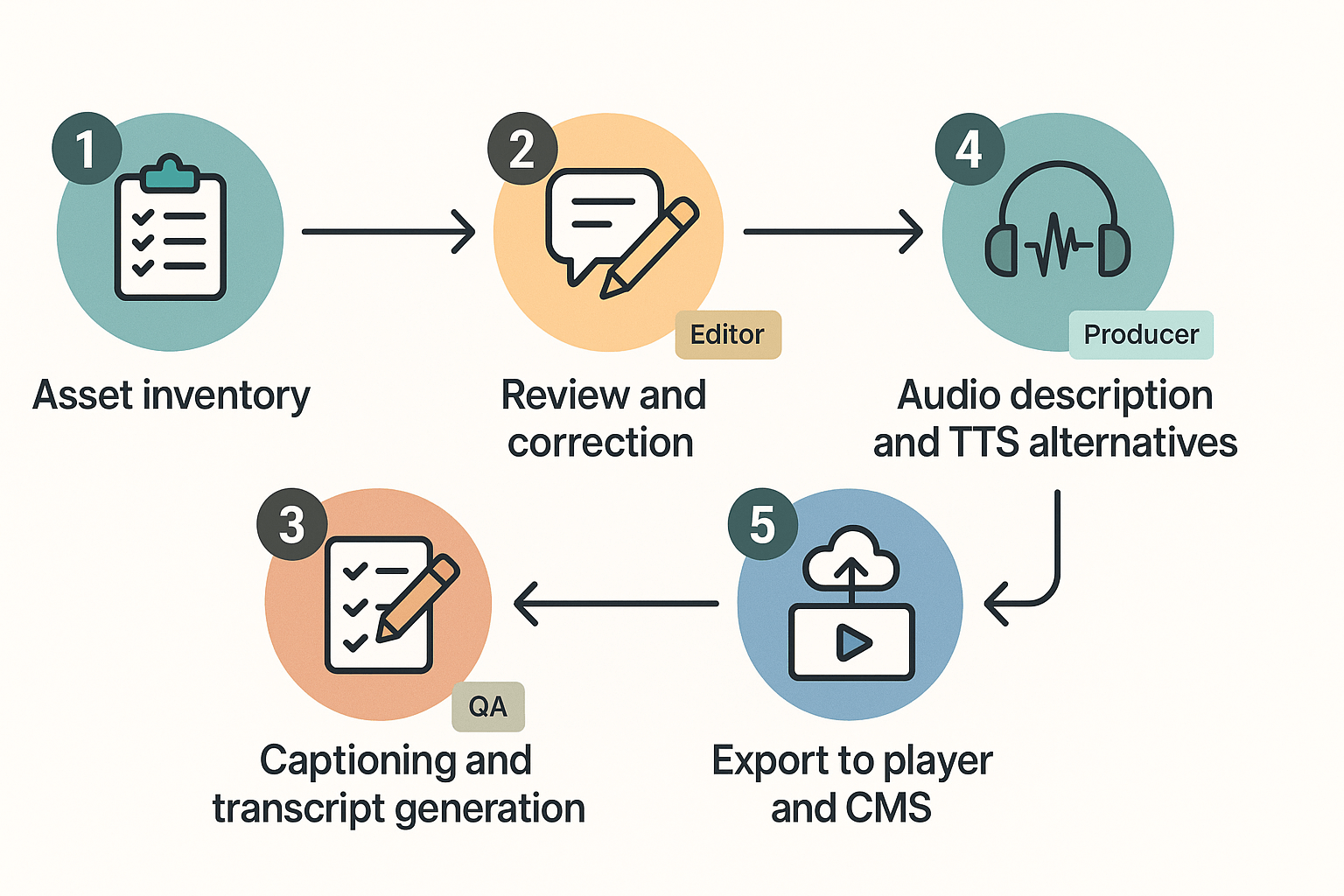
1) Inventory and priority mapping
Create a short inventory of all multimedia files. Note length, language, audience, and where the file lives. Rank assets by impact and risk: public marketing and training rank high. Assign owners and set SLAs for fixes.
2) Generate captions and align timing
Auto-generate captions from speech-to-text as a first pass. Then edit for accuracy, speaker labels, and punctuation. Fix timing so captions display during the actual spoken words. Add language tags in the caption file header.
Checklist for captions:
-
Ensure 95%+ verbatim accuracy of key phrases and names.
-
Use SRT or WebVTT with correct timecodes.
-
Add language and locale tags (for example: lang="en-US").
-
Mark non-speech sounds in brackets, like [applause].
3) Produce usable transcripts and semantic metadata
Export a plain-text transcript alongside timestamps. Structure transcripts with headings and speaker names. Add semantic metadata for CMS fields: title, description, language, duration, and access notes. Store transcripts in a searchable location linked to the asset.
4) Decide on audio description or TTS alternatives
Assess whether visual content needs an audio description track. If so, script brief descriptions that fit natural pauses. For simple needs, offer a TTS alternative that includes visual cues from the script. Keep audio descriptions concise and accurate.
5) Use recommended file formats and accessible players
Export captions as SRT or WebVTT. Deliver audio as MP3 or WAV and video as MP4 H.264. Use an accessible player that supports keyboard controls, captions toggle, and screen reader labels. Ensure players expose captions via standard APIs.
6) QA: combined automated and manual testing
Automated checks: validate caption file syntax, check language tags, and run player accessibility scanners. Manual checks: review captions while watching, test keyboard-only controls, verify transcripts for usability, and perform a sighted and a screen reader pass. Include a reviewer who represents actual users.
Follow this checklist per asset, track fixes, and re-run QA before publish. Consistency matters more than perfection: prioritize high-impact fixes first, then scale to the rest.
How DupDub’s features map to WCAG 2.2 & Section 508 for multimedia workflows
This section shows how DupDub modules align with common multimedia accessibility tasks, so teams can plan compliant workflows without over-promising. It explains where automation helps, where human review is required, and how this fits into wcag compliance efforts for video and audio. Read it as a toolkit you can slot into your CMS, LMS, or CI/CD review pipeline.
Auto-subtitles and caption alignment: close the caption gaps
Auto-subtitles reduce manual captioning time and provide a base layer for accuracy. DupDub’s speech-to-text (STT) produces time-aligned captions you can edit, which cuts the usual mismatch between audio and visible text. Use auto-subtitles for draft captions, then apply a quick human pass to fix speaker labels and punctuation.
Benefits and practical tasks:
-
Generate SRT files automatically, then export for policy review.
-
Correct speaker separation and non-speech labels, like [music] and [applause].
-
Ensure captions match reading order and on-screen events, a key WCAG cue.
Transcripts and searchable text: improve access and discoverability
Transcripts turn audio into searchable text that supports navigation, indexing, and metadata. Exportable transcripts help meet requirements for providing equivalent content and improve SEO by making spoken content crawlable. Keep one canonical transcript file per asset, and push it to your CMS with timestamps and role labels.
Practical exports:
-
Plain text transcript for CMS indexing.
-
Time-stamped SRT for caption display.
-
VTT or JSON for interactive players and analytics.
TTS and voice cloning: practical uses for audio description
Text-to-speech and voice cloning make spoken transcripts and audio descriptions quicker to produce. Use TTS for short audio descriptions that explain key visual content, and keep cloned voices for brand consistency in narrated transcripts. Always flag machine-generated audio so reviewers can check phrasing and timing.
Checklist for audio description:
-
Draft descriptions with TTS, then have a human editor verify timing.
-
Use short, clear sentences to match reading speed.
-
Store source text and version history for audits.
Integration points: handoffs to CMS, LMS, and CI/CD
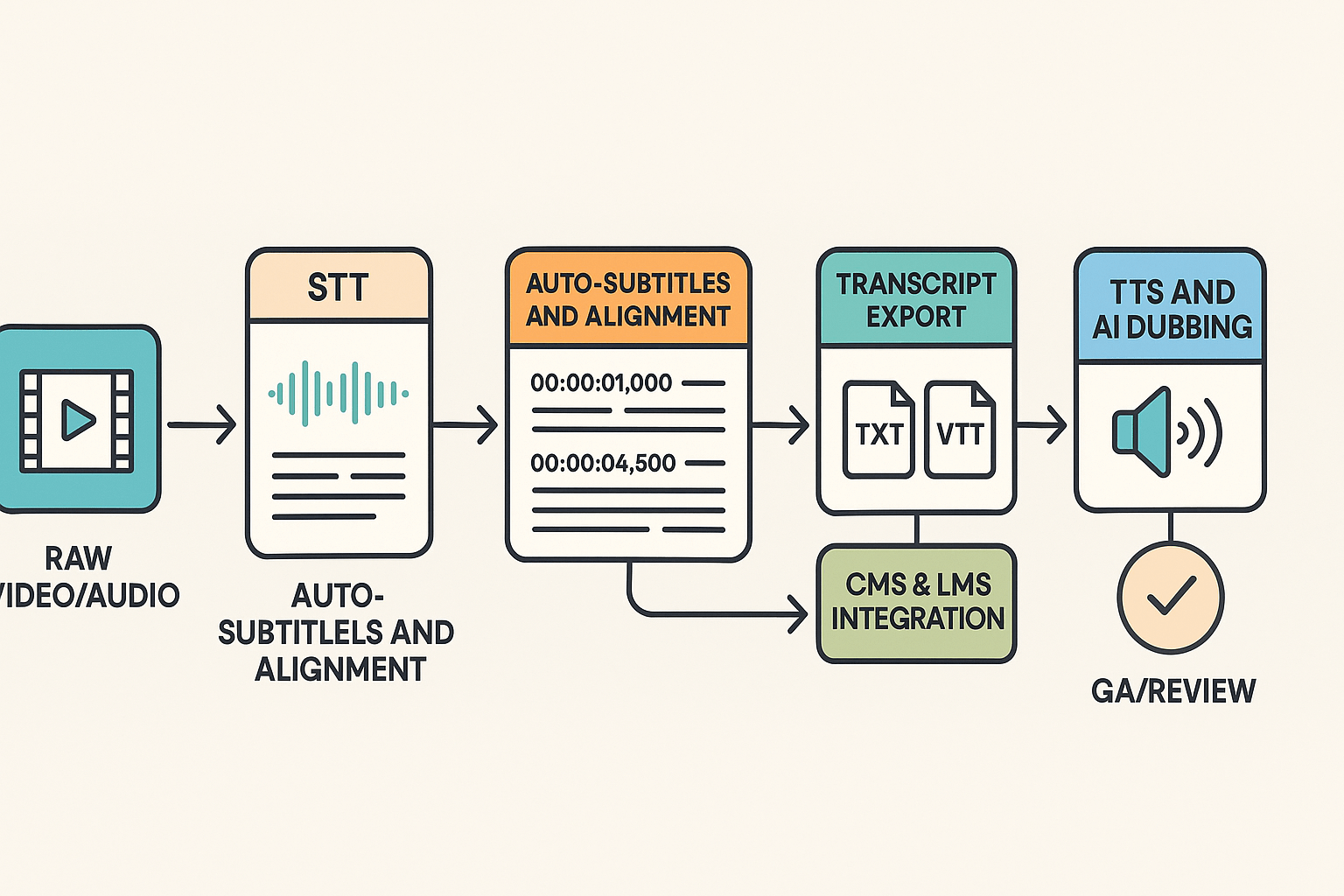
DupDub fits into pipelines as a processing node: STT to auto-subtitles, subtitle alignment to transcript export, then TTS or dubbing for alternate audio. Automate exports to your CMS or LMS and trigger human review via a ticketing or CI/CD hook. That keeps compliance repeatable and measurable across releases.
-
Export formats: SRT, VTT, MP3, WAV, MP4.
-
Suggested flow: Upload asset → Auto-transcribe → Edit captions → Export to CMS → Trigger QC review.
Mini case studies (before → after) and measurable outcomes
Start with clear goals: this section shows three short before/after examples teams can track when they fix multimedia gaps for wcag compliance. Each mini case lists practical metrics you can measure during remediation, like completion rates, error volume, time to fix, and QA pass rate. Use these numbers to prove value and prioritize next work.
E-learning provider: fewer help requests, higher completion
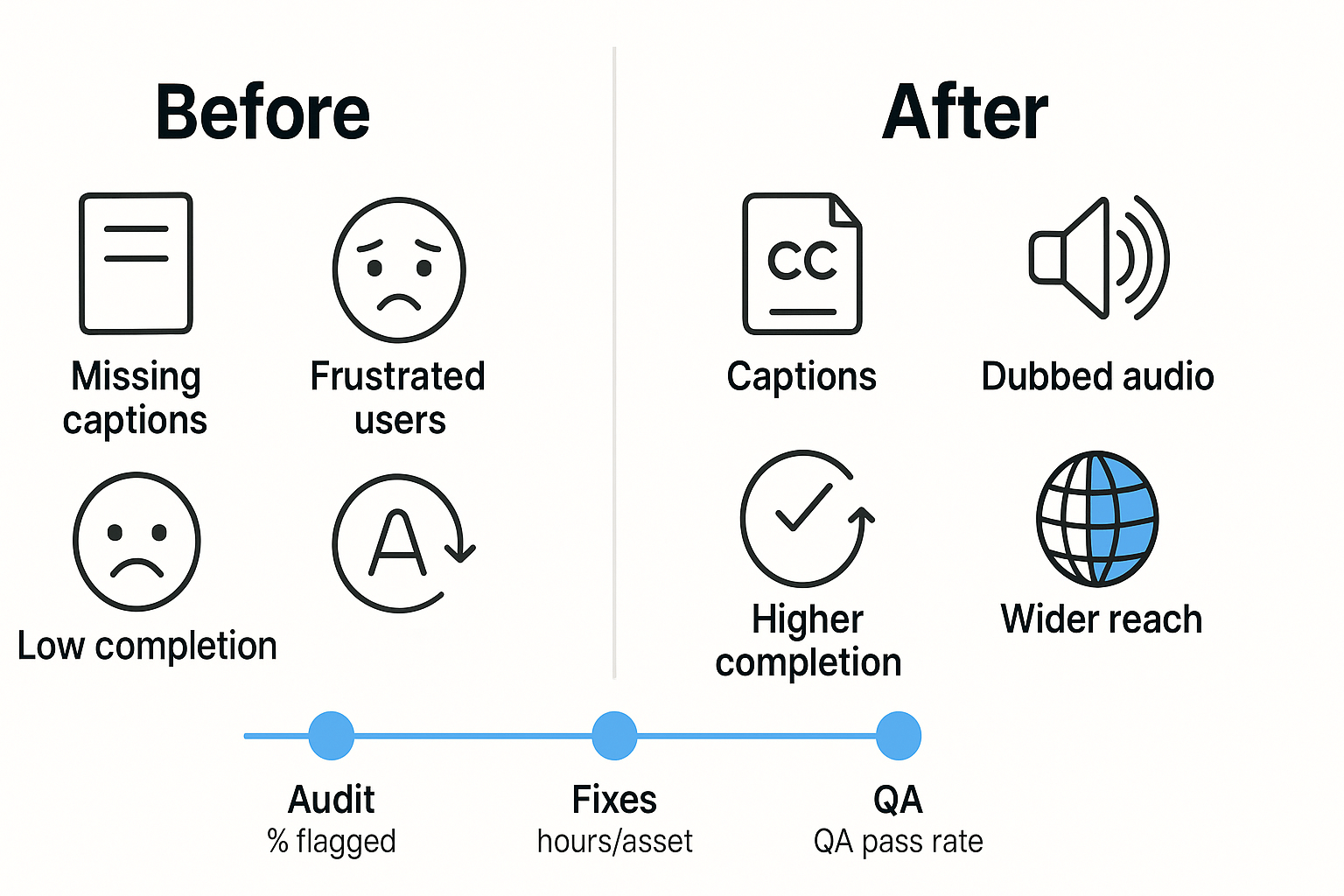
Before: Learners skipped videos and filed many access requests. Transcripts were missing, and captions were inaccurate. Course completion lagged, and support tickets rose.
After: The team added accurate captions, verified transcripts, and lightweight audio descriptions for key modules. Completion rose, questions dropped, and time-to-resolution for support tickets fell.
Track these metrics: completion rate, percent of videos with captions, weekly support tickets, and average support response time.
Marketing team: broader reach and better engagement
Before: Product videos targeted one language and lacked captions. Viewers outside the base market could not follow the message. Watch time and conversion from video were low.
After: The team added translated captions and dubbed audio into priority languages. Views from new markets increased, and engagement and conversions rose.
Track these metrics: new-market view share, average watch time, click-through rate from video, and caption coverage by language.
Remediation timeline: time to fix and QA pass rate
Before: Patches were ad hoc, with no predictable timeline. QA failed often, and fixes cycled back to engineering.
After: The team adopted a repeatable remediation workflow: audit, fix, QA, publish. QA (quality assurance) checks are now planned milestones with clear owners.
Steps and metrics to track:
-
Audit week: number of multimedia assets scanned, percent flagged.
-
Fix sprint: average hours per asset to remediate, team hours used.
-
QA pass: first-pass QA pass rate, number of rework tickets.
-
Publish and monitor: post-publish user complaints, accessibility regressions.
Measure progress weekly, then report quarter over quarter. These metrics turn accessibility work into clear ROI. Document wins and use them to scale remediation across teams.
Implementation roadmap: prioritize, integrate, and measure ongoing compliance
This roadmap gives teams a clear way to plan wcag compliance work, phase deliverables, and set measurable goals. Start with the highest-impact fixes, fold accessibility tasks into regular releases, and track simple KPIs so progress is visible. The steps below help teams move from triage to steady operations.
Phase work by priority
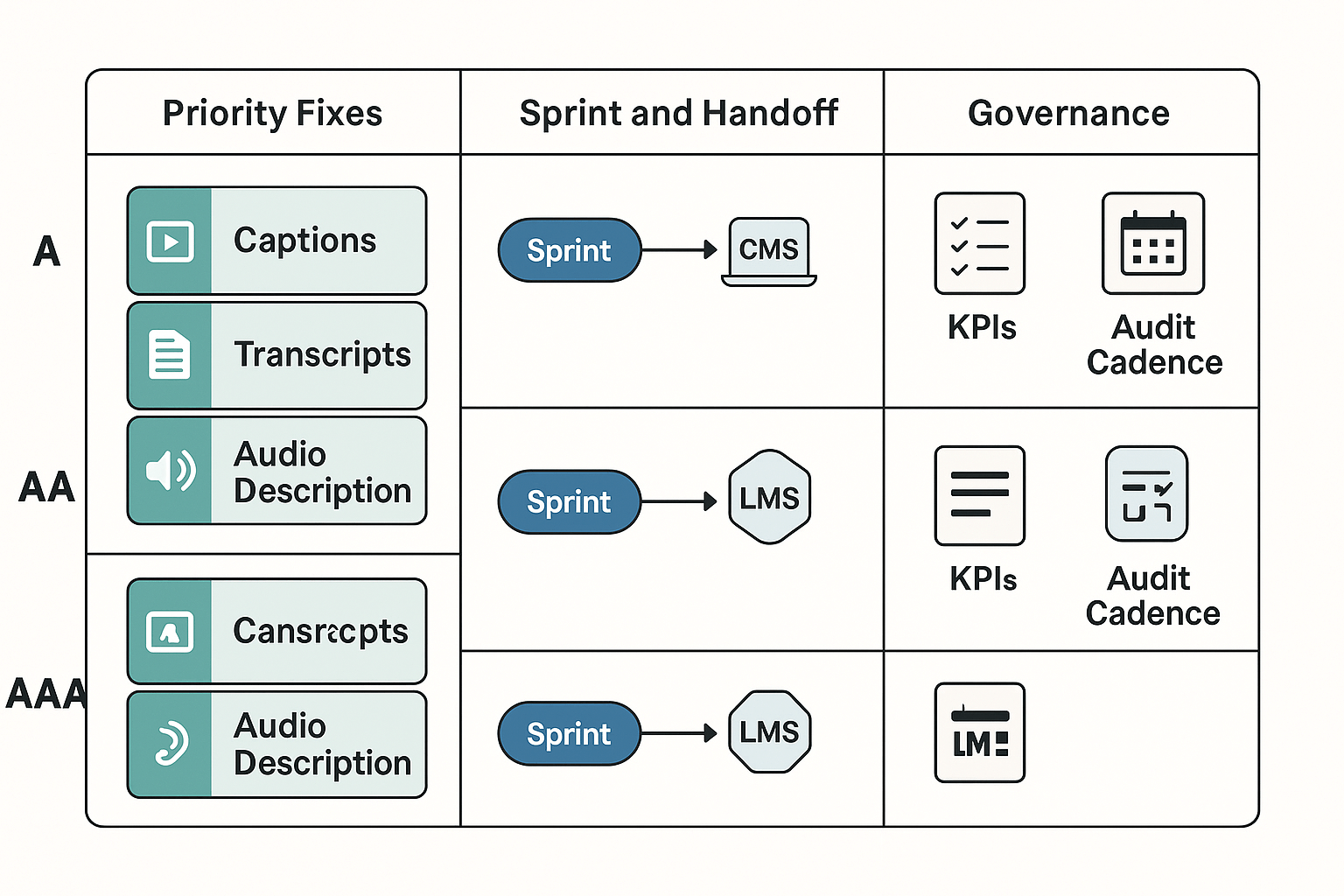
Break work into A, AA, and AAA buckets so teams know what to fix first. Focus first on A issues that block access, then AA items that affect comprehension for many users, and finally AAA items where value justifies the effort. Use this ordered list when planning sprints.
-
A: captions for videos, keyboard access, basic transcript availability.
-
AA: accurate captions and subtitle translations, audio descriptions for key content.
-
AAA: optional enhancements like simplified transcripts or extra language coverage.
Bake accessibility into sprints and handoffs
Make accessibility a sprint task, not a post-release sprint. Add acceptance criteria for media items: captions present, transcript uploaded, audio description flagged. Create clear handoffs to CMS or LMS owners and to the compliance lead.
-
Add captioning and transcript tasks to each video card.
-
Include alignment checks for subtitles during QA.
-
Tag finished assets with an accessibility status in the CMS.
Measure, train, and escalate
Track a small set of metrics and review them weekly or monthly. Key metrics: audit cadence, percentage pass rate, remediation velocity (time to fix), and backlog age. Train creators and reviewers on captioning standards and hold regular governance reviews. Bring in external auditors or legal counsel when content is high risk: regulatory exposure, public sector requirements, or unresolved complaint trends.
FAQ — common questions about WCAG compliance for multimedia
-
What are the limits of automated accessibility checkers for multimedia?
Automated accessibility checkers find obvious technical issues, like missing captions or broken files. They can’t judge caption accuracy, timing, audio description quality, or whether content is understandable. For true WCAG compliance you need manual audits, human review of captions and transcripts, and user testing with assistive technology.
-
What is the difference between captions, subtitles, and transcripts for accessibility?
Captions include speech and important non-speech sounds and serve Deaf and hard of hearing users. Subtitles typically show translated dialogue only and help non-native speakers. Transcripts are full text records, useful for search, study, and people who need text rather than audio.
-
Do synthetic voices and TTS help meet accessibility requirements for multimedia?
Yes, modern text to speech can provide accessible audio tracks and spoken transcripts. But synthetic voices must be clear, natural, and reviewed for tone and timing. Always pair TTS with accurate transcripts and allow users to choose human narration when needed.
-
How often should teams audit multimedia for WCAG compliance?
Audit active content at least quarterly, and before major releases or training rollouts. Do focused checks after platform changes, measure caption and transcript accuracy, and run annual user testing with real assistive tech users.




 Discord
 YouTube
 Tiktok
 Twitter
 Facebook
 Instagram